Squarism

Art Forms :: Squarism :: App :: Square as 4

Welcome!

Welcome to the studio of TheFactorium.ART 2.0.


All fields below are required, unless otherwise indicated.

"Squarism is the fusion of geometry1, color psychology2, and artistry."
― DJ Abrams

"Art for artist's sake."3
― DJ Abrams


The Squarism App allows you to transform your Artist's image for the Sake of expressing it as the Art form of Squarism.

We highly recommend that you fully read the page. A lot of verbiage to describe the process, but it is necessary. Like Squarism , it is a technically precise and creative process. And, it can be finicky. To get the most out of it, to create that perfect image, you should fully tune in. It will be worth it. Enjoy!

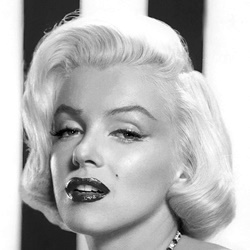
Example (as Thumbnails) :: Marilyn Monroe :: Squared as 1

Squares Example :: Marilyn Monroe as Before Squares Example :: Marilyn Monroe as After :: Squared as 1

Example (as Thumbnails) :: Marilyn Monroe :: Squared as 4

Squares Example :: Marilyn Monroe as Before Squares Example :: Marilyn Monroe as After :: Squared as 4

Squarism is dedicated to Andy Warhol, who redefined the cubism created by Pablo Picasso (Spanish, 1881 - 1973) and Georges Braque (French, 1882 - 1963) in Paris between 1907 and 1914.

Shortcuts

Step1 :: Canvas
Step2 :: Borders
Step3 :: Squares
Step4 :: Title
Step5 :: Specs

Let's start . . .


Step 1 :: Canvas


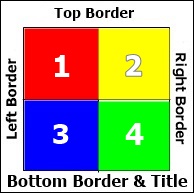
  1. Provide a file (Canvas) to be rendered: rendered as 4 colored squares framed as a square (Squarist Image).
  2. Any characters other than lower case letters (a-z), upper case letters (A-Z), numbers (0-9), dashes(-), underscores (_), and periods (.) will be removed from the final filename.
  3. Only JPG and PNG files are allowed.
  4. Maximum file size allowed is 5 MB (5,242,880 Bytes).
  5. Provided images should be square. If an image is discovered to be rectangular, it will be AI rendered as a square.
  6. For maximum effect, the provided images should be black and white (grayscale using tones ranging from black to white through intermediate shades of gray). The choice is yours. Colors in the provided image (bottom layer) can interfere with the square colors (upper layer). It will vary with the degree of Transparency. The more opaque the square color, the less the interference. So, bear this in mind. You do have the option to force the app to grayscale your image.
  7. About the Subject. Your Subject ideally should be a close-up portrait image: "front profile" where the front or forward-facing part is presented directly to the viewer. Subject can be whatever you desire to render and profile: person, place, or thing. For example: you (person), or your hometown of Paris (place), or the Eiffel Tower in Paris (thing).
  8. Preferably, use a high-resolution image comparable in size to the desired rendered image. Resizing an image can often lead to a loss of quality, resulting in a blurry or pixelated appearance. This is because when you enlarge a raster image (like a JPG or PNG), software has to "guess" what color to make the new pixels based on surrounding ones, leading to a loss of detail and sharpness. Again, you can minimize the loss by (1) not resizing the Squarist Image too large, and (2) providing a high-resolution image. The higher the resolution, the greater the resolution of the Squarist Image.
How files are named. Your provided files are named as follows:

Provided File named as IDENT.FILENAME.EXT
Rendered Final File named as IDENT.FILENAME-squarized-XXXXXXX.EXT
Rendered Preview File named as IDENT.FILENAME-squarized-XXXXXXX-preview.EXT

Where IDENT identifies you as the one who provided the file.
Where FILENAME is the base name of the provided file.
Where XXXXXXX is as-two or as-four.
Where EXT is the file extension of the provided file (JPEG, JPG, or PNG).


File uploaded: None


OR


OR


Use one of your image files (provided or rendered). Note that image files (provided files and rendered files) are automatically purged by the system every hour.


For maximum effect, uploaded images should be black and white (grayscale using tones ranging from black to white through intermediate shades of gray). The choice is yours. Colors in the uploaded image (bottom layer) can interfere with the Square Colors (upper layer). It will vary with the degree of Transparency. The more opaque the Transparency, the less the interference. Disable if uploaded image is already in grayscale.


If the Squarism Image is rotated incorrectly, you can correct by Rotating Image here to the desired orientation. This can happen when loading images from a mobile device, when the image is rotated 90°. Note that there is no 180° Left or Right. They are the same.

Step 2 :: Borders


1.00 x 1.00 in

Border Background Color

Border Font Color

Step 3 :: Squares


<verbiage>

Special note about the squares. The number, shape, and placement of squares cannot be adjusted. To allow this would violate or muddy the brand and underlying concept and theme of Squarism.

Which squares are which? Squares are numbered. You can view the layout by clicking on the [Schema] button.
Tips :: Defining Your Subject

Square Colors

  • You can color the squares. This is the fun and meaningful part of the process! Each square paints a perspective of the Subject in the photo. For example, using color to describe a person is a metaphorical and symbolic way to express personality traits or emotional states. It's not about literal skin color but rather about associating colors with characteristics. For example, someone described as "fiery red" might be seen as bold and energetic, while someone described as "cool blue" might be seen as calm and composed. The squares are of varying sizes. For example, if the Subject is more often bold and energetic, then choose a larger square to paint as red, and a smaller square to paint as blue.

    The four primary colors can refer to different sets depending on the context. In color theory and from the psychological perspective, the four primary colors are red, yellow, blue, and green. We use these as the defaults for the squares. Just a starting point. Play with it to capture your Subject.

    You can select from a pool of 16,777,216 colors!

    Here's a breakdown of how colors are often used to describe a Subject, while looking through the psychological lens:

    Positive Associations

    Red: Energetic, passionate, bold, confident.
    Orange: Social, playful, cheerful, enthusiastic.
    Yellow: Optimistic, happy, cheerful, curious.
    Blue: Calm, dependable, trustworthy, loyal, peaceful.
    Green: Grounded, harmonious, nurturing, practical, helpful.
    Purple: Artistic, intuitive, spiritual, unique.
    Pink: Gentle, nurturing, kind, empathetic.

    Negative Associations

    Red: Can also be associated with aggression or anger.
    Blue: Can sometimes be linked to sadness or melancholy.
    Yellow: Can be associated with anxiety or overthinking in some contexts.
    Green: Can be associated with envy or jealousy.
    Purple: Can be associated with moodiness or being aloof.

    Other Considerations

    Black: Often associated with strength, determination, and being unafraid to stand out.
    White: Can symbolize purity, cleanliness, or new beginnings.
    Skin Color: While skin color is a literal characteristic, using terms like "brown" or "beige" can be descriptive and neutral when talking about someone's physical appearance.


Many, if not most, colors can have both positive and negative associations. It may leave the viewer unsure of what is being conveyed. For example, if the largest square is red, is the Subject passionate or angry? You can convey what you are expressing in the Title. If you are profiling someone who was angry in their youth, you could title as "Angry Young Man." On the other hand, if you are profiling someone young who is passionate and energetic, you could title as "Energy and Passion of Youth."
To borrow from Rod Stewart, "Every Picture Tells a Story." Through the lens of Squarism , "Every Square Paints a Story." Each square painting a perspective. Dipping the brush in one of the colors from the palette, and drawing strokes to paint each square to describe your Subject. As a whole, they round it all out.

Square Transparencies

Transparency has a value between 0 and 127. 0 indicates completely opaque, while 127 indicates completely transparent. Completely opaque means the square is visible, but not the part of the image underlying the square. Completely transparent means the part of the image underlying the square is visible, but not the square.

Ideally, you should seek the middle ground. Default is 75. However, for effect, you can treat squares differently. For example, if one square represents a trait that is more subtle and nuanced, you have the square Transparency set as more transparent. If, on the other hand, a trait is more profound and pronounced, you have the square Transparency set as more opaque.

Clear as glass? Either way, have fun. Play with it to make your Subject crystal clear.

</verbiage>


Shortcut :: Describe Your Subject

OR

Full :: Paint Your Subject
Square 1 Color


Increase to lighten and decrease to darken.
Square 2 Color


Increase to lighten and decrease to darken.
Square 3 Color


Increase to lighten and decrease to darken.
Square 4 Color


Increase to lighten and decrease to darken.

Step 4 :: Title


Optional, but highly recommended. However, if left empty, you will just see TheFactorium.ART.

The maximum length of Title is 25 characters. Title is postfixed with TheFactorium.ART. The Title expands on what you are expressing about the Subject to the viewer. Painting a picture is the goal. A picture is worth a thousand words, yes. But sometimes actual words can enhance the narrative of what you are conveying about the Subject to the viewer.

Important Note: TheFactorium.ART is not postfixed if you are Signed Up and Signed In.
Title
Font size of Title in Bottom Border. Size will depend on image size and length of the Title. If you find that the Title runs off the image, either (1) decrease Font Size, and/or (2) increase Image Size, and/or (3) decrease Title length.

0.28 in

Title Preview
TheFactorium.ART

Step 5 :: Specs


15.00 x 15.00 in

Render Preview

Scheme Reset